
Your next print, a little better
3D printer printing in midair: filament stops coming out
The printhead keeps moving but material is missing? Check the spool, filament path, extruder and hotend in that order.
End the unsuccessful print and note where material flow stopped. Check the spool and filament path, then the extruder and hotend cooling. Distinguish a filament break from a blockage in the printhead.
Open the relevant troubleshooting helperCould this help someone else too? Share the free guide.
How do you recognise the problem?
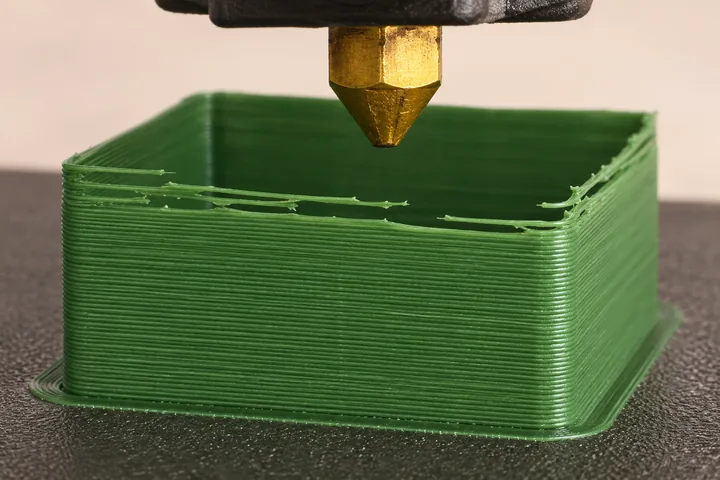
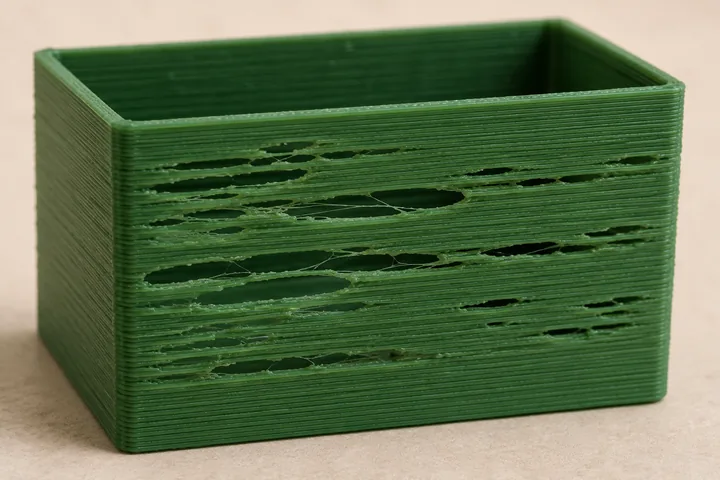
The print starts normally. Later, the printhead continues moving above the part but no longer deposits material. Entire layers are missing, or the print ends below its planned height.
| What you observe | What could be behind it | Your next step |
|---|---|---|
| Spool is stuck or does not unwind | The feed path may be blocked. | Check the spool and guide. |
| Filament has broken between the sensor and nozzle | A sensor may not detect the feeding failure. | Check the entire feed path according to the instructions. |
| Extruder clicks or grinds a notch | The feed system is encountering resistance. | Do not keep feeding against the blockage. |
Possible causes
- Empty spool, knot or blocked unwinding
- Broken or ground-down filament
- Blockage in the extruder or hotend
- Thermal issue during longer prints
Narrow it down step by step
Change one thing at a time and compare using the same small test print. Check off the steps you have completed.
0 of 6 steps checked
Stop the print and document its condition
Photograph the last complete layer and note the approximate running time. Note any error message. Do not check hot parts with your fingers.
Check the spool and spool guide
Check whether material remains and can unwind freely. With an automatic material feeder, also check the affected channel. An empty sensor path and a stuck spool require different actions.
Look for filament breaks and grinding
Follow the material path using the intended unloading procedure. Look for a break inside the tube or a ground-down section at the extruder. Do not pull uncontrollably on a spool that is still held in the feed system.
Test loading according to the instructions
Use the correct loading procedure and watch whether material passes through the nozzle. Repeated clicking is a reason to investigate the cause rather than restarting the print again and again.
Investigate the hotend and cooling
If the fault occurs only after a longer running time, include fans and thermal conditions in your checks. Use the manufacturer's instructions for your model. A higher nozzle temperature alone does not solve every thermal feeding problem.
Print a small verification job
After fixing the issue, start with a short print. If the fault appeared only late in a print, a single successful first layer is not sufficient confirmation. Continue watching material flow.
Why does the filament sensor not detect this?
Depending on its design, a filament sensor monitors only a particular section or condition. Filament being present does not automatically mean material is coming out of the nozzle. A break after the sensor, ground-down filament or a blockage may therefore be handled differently from an empty spool.
Your own comparison
Why does material stop flowing only after a longer print time?
- Record the starting point
- Record the run time until the failure, the last complete layer and whether the spool and extruder are still moving. Record any displayed error message.
- Check deliberately
- Check an observed cause according to your printer's instructions, for example a blocked filament path. Then continue testing with the same profile and material.
- Assess afterwards
- A successful first layer is not enough when failure happens later. Keep observing the feed beyond the previous failure time, and stop if clicking or lack of material returns.
This is a troubleshooting guide for your own print. Document your observations so you can find effective changes again.
Use the test log and free template →Slicer and material
These settings matter
- Restore material transport first
- Use an unmodified manufacturer profile for comparison
- For throughput problems, test a lower volumetric flow
- Do not make blanket changes to sensors or protective functions
Brittle filament can break in the feed path. Flexible materials and spools with high friction may have different feeding requirements. Check approval for your printer and material system.
Frequently asked questions
Is it always a clogged nozzle?
No. An empty or blocked spool, broken filament and extruder problems can produce the same result.
Can I simply resume the print?
Normal resuming will not rebuild layers that are already missing. Check the print's condition and your printer's resume function before continuing.
Related guides for further reading
 AI example image
 AI example image
 Illustration
Manufacturer information and further sources
This sequence of checks puts typical symptoms into context. Specific maintenance procedures always apply to the respective printer model.

Applies to FDM/FFF printing with filament. No automatic photo analysis. For hot, electrical or moving components, follow the manufacturer's safety and maintenance instructions.