
Your next print, a little better
Clogged 3D printer nozzle: narrow down the cause and clean safely
No filament coming from the nozzle, or a clicking extruder? Distinguish feeding problems from a hotend blockage.
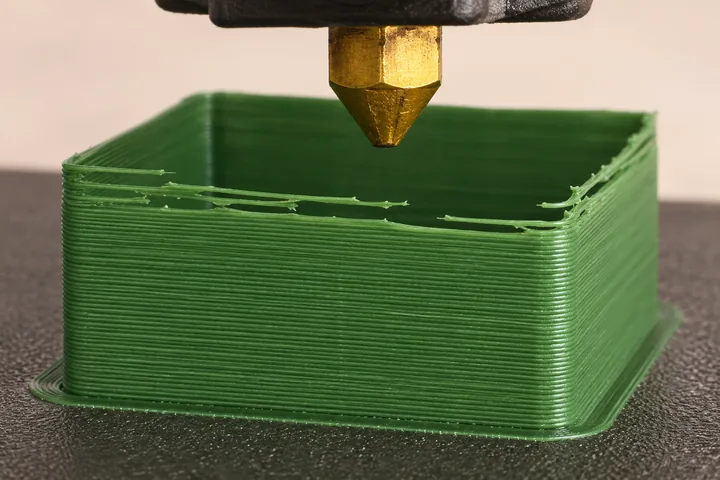
Stop the print, check the spool and filament path, then observe the printer's loading procedure. If material flows evenly, check the profile and first layer first. If flow remains blocked, narrow the issue down to the extruder or hotend. Then use the appropriate cleaning procedure from the manufacturer.
Open the relevant troubleshooting helperCould this help someone else too? Share the free guide.
How do you recognise the problem?
Little or no material comes out. The extruder may click or grind the filament. A partial blockage may become noticeable only during a longer print.
| What you observe | What could be behind it | Your next step |
|---|---|---|
| Spool does not turn freely | The resistance may be before the hotend. | Check the spool and feed path. |
| Extruder clicks but no material comes out | There may be a blockage or unsuitable operating conditions. | Check the loading procedure and temperature according to the manufacturer's instructions. |
| Print starts cleanly and fails later | A thermal issue or partial blockage may be involved. | Document hotend cooling and the timing of the problem. |
| Material flows during loading but not on the build plate | This does not yet prove a nozzle clog. The profile or nozzle distance may be involved. | Check the first layer and build plate profile. |
Possible causes
- Knots, friction or breaks in the filament path
- Deposits or foreign particles in the melt channel
- Softened filament above the melt zone
- Nozzle unsuitable for the material used
Narrow it down step by step
Check material flow using the intended loading procedure first. Start a test print only after feeding works again. Tick off the checks you have completed.
0 of 6 steps checked
End the print in a controlled way
Do not let a print continue without material flow. Be aware of hot surfaces. Do not move or disassemble the hotend while printing motion is underway.
Trace the spool and feed path
Check the path from the spool to the extruder. Look for a caught winding, broken filament or a sharply bent tube. Use the intended unloading procedure instead of yanking the filament.
Test the loading procedure
Use the manufacturer's loading and extrusion function with a suitable material profile. Cold filament cannot be fed as it is during normal printing. If it does not feed, stop repeatedly pushing against the blockage.
Check the extruder and fan
Debris on the gears or a hotend cooling problem can look like a clogged nozzle. Follow your model's instructions when opening the assembly. Electrical or damaged components require qualified help.
Use a suitable cleaning procedure
A cold pull may be useful with a suitable assembly and material. It is not a universal method for every nozzle. Do not copy pulling temperatures, tools or disassembly procedures from another printer model.
Confirm with a small print
After cleaning, test the intended loading procedure and a short print. If material flow remains unreliable, continue narrowing down the cause. A nozzle change alone will not fix an extruder blockage or a stiff feed path.
Cleaning the nozzle: outside or inside?
Plastic can stick to the outside of the nozzle tip even when it extrudes a steady strand during loading. If the flow stalls during loading despite a clear feed path, there may be an internal blockage. Choose a cleaning method from your printer model’s maintenance guide.
When is a cold pull useful?
A cold pull heats material in the hotend, cools it in a controlled way and removes it according to the model's instructions. It may carry deposits out. A partial clog, a fully blocked nozzle and broken filament in the extruder require different checks. Do not use one pulling or cleaning temperature for every printer.
Bambu P1S, X1 and A1: choose the correct maintenance guide
Check the exact model and installed nozzle. Assemblies and maintenance procedures differ. Open the appropriate manufacturer guide before cleaning; do not apply a Prusa disassembly procedure or cold-pull temperature to a Bambu printer.
After cleaning: what makes a successful test?
Check loading first, then make a short print with the same material and profile. Record steady feeding, clicking and new gaps. If the fault appeared later, observe that period too. One clean strand or a photograph does not prove the cause has been permanently resolved.
Free nozzle inspection worksheet
Record the printer, material, when the fault starts and each check performed. The CSV template opens in Excel, LibreOffice or Google Sheets and contains no prefilled measurements.
Download nozzle worksheet (CSV)Slicer and material
These settings matter
- Load the correct material and nozzle profile
- After maintenance, first test a lower material throughput
- Do not increase retraction indiscriminately
- For filled filaments, observe the approved minimum nozzle size
Wood, CF and GF filaments need a suitable nozzle. Wear resistance and permitted diameter are separate properties. Follow the printer and filament manufacturers' specifications.
Frequently asked questions
Does a clogged nozzle need replacing immediately?
Not necessarily. First establish where the blockage is. Replacement may be necessary if the nozzle is damaged or appropriate cleaning is unsuccessful.
Can I clean every nozzle with a needle?
No. The tool and procedure must suit the nozzle. Mechanical damage can permanently change material flow.
The extruder clicks. Does that prove the nozzle is clogged?
No. A blocked filament path, unsuitable temperature or excessive flow demand can also restrict feeding. Check the feed path and the intended loading procedure before disassembling the hotend.
Why does raising the temperature not always help?
More heat does not undo a knot or repair broken filament. With a thermal problem above the melt zone, it may be the wrong approach. Stay within manufacturer limits and investigate the cause instead of raising the temperature by default.
Related guides for further reading
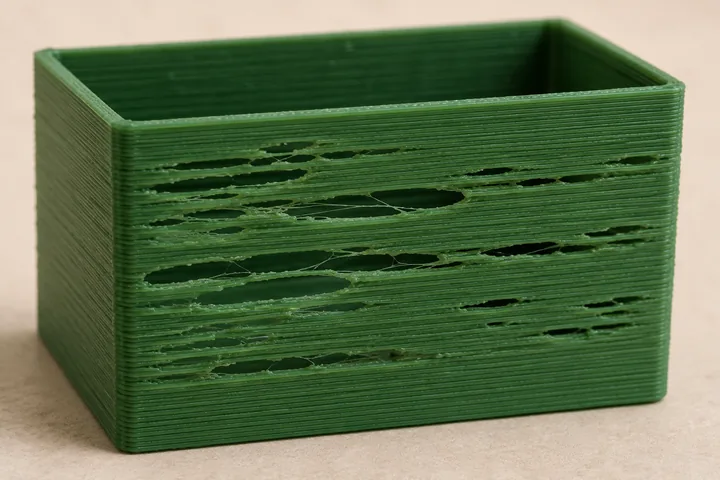 AI example imageAI example image
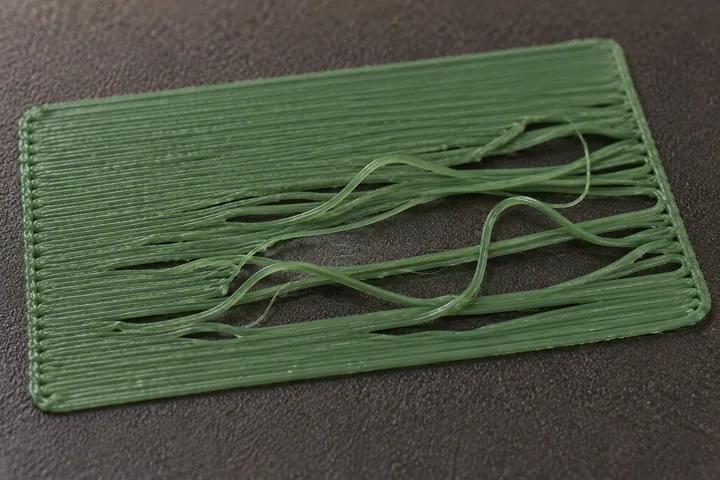 AI example image
 Illustration
Manufacturer information and further sources
This sequence of checks puts typical symptoms into context. Specific maintenance procedures always apply to the respective printer model.

Applies to FDM/FFF printing with filament. No automatic photo analysis. For hot, electrical or moving components, follow the manufacturer's safety and maintenance instructions.